

Goodmood Demo: Transform Your Mac Display for Any Activity
See Goodmood in Action
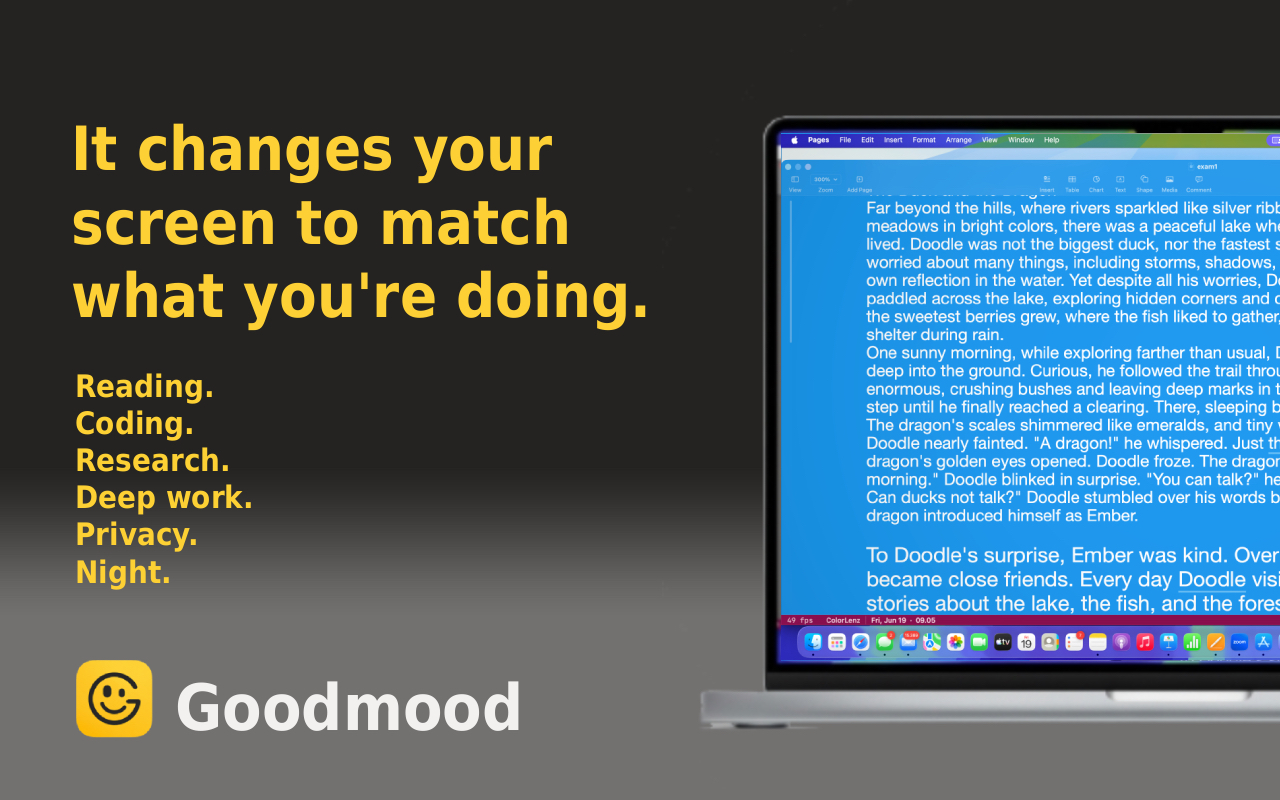
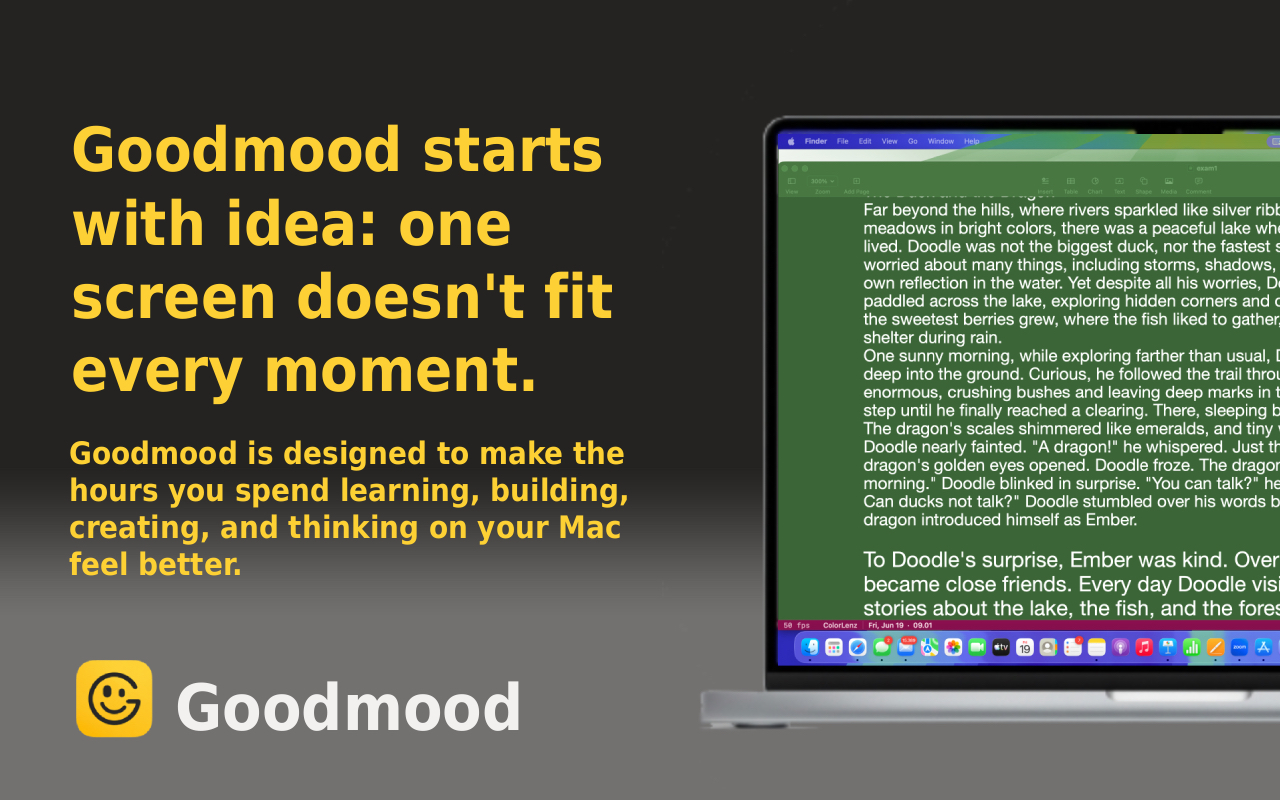
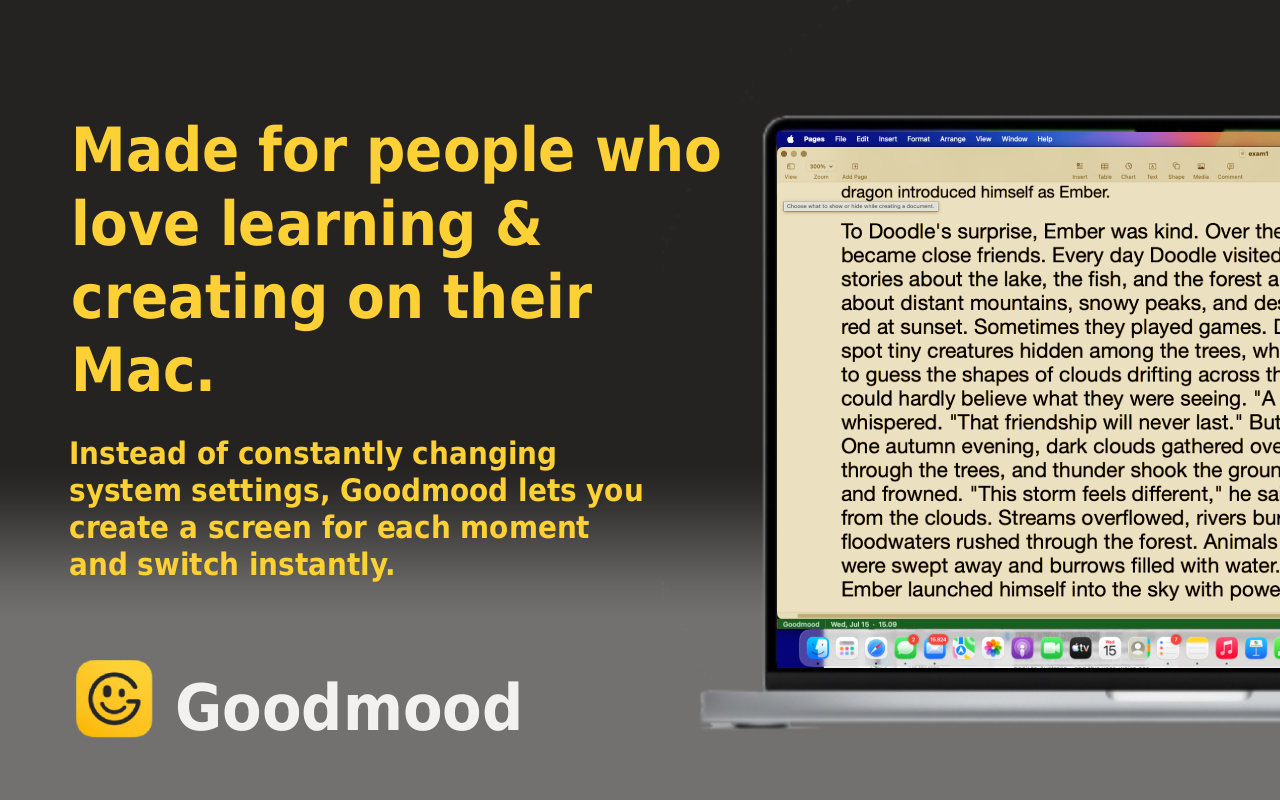
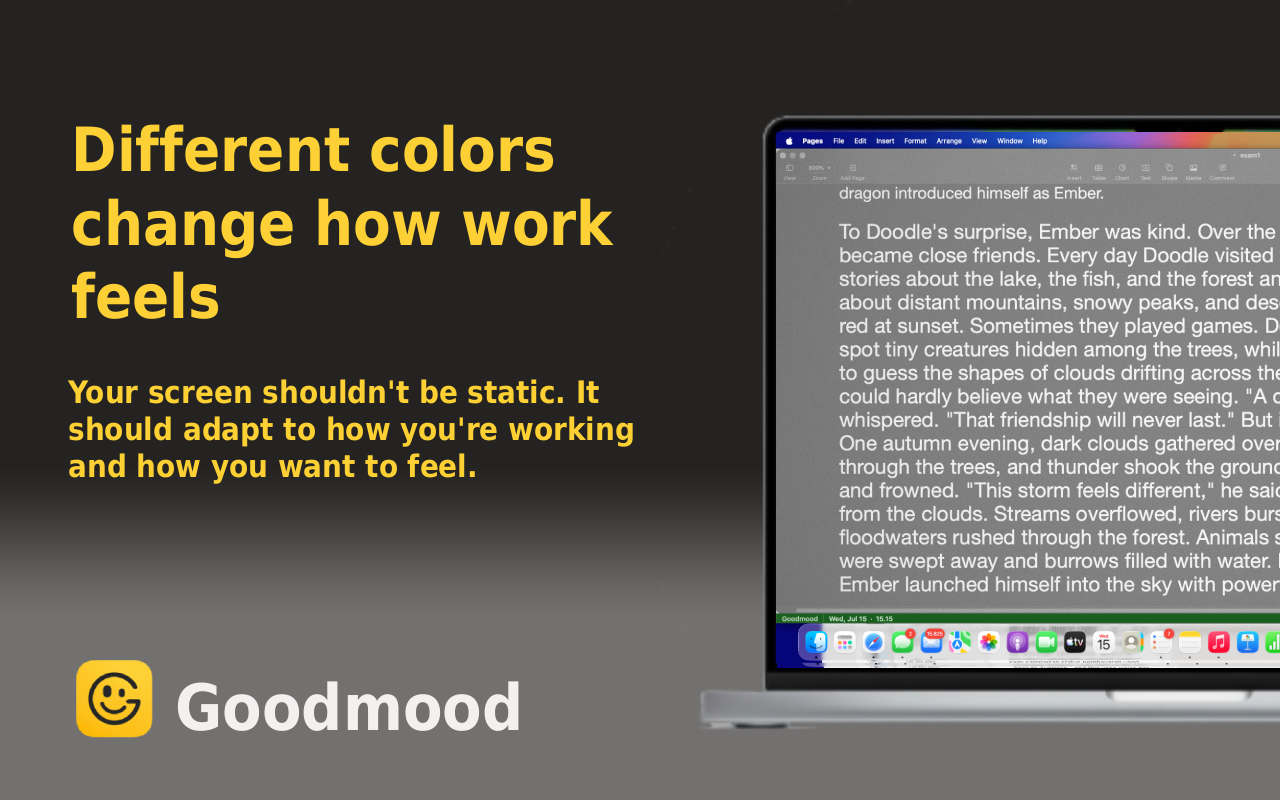
Tired of choosing between only Light Mode and Dark Mode? Watch how Goodmood transforms your Mac display to match what you’re doing at any moment.
In this video, you’ll see:
✅ How to open Goodmood from the Mac App Store
✅ Explore the different built-in screen presets
✅ Customize your display in real time
✅ See how Goodmood works seamlessly across your Mac
What Makes Goodmood Different
Beyond Light and Dark Mode
Your Mac offers Light Mode and Dark Mode. That’s it. Two options for an entire day of different activities.
Goodmood changes that. Instead of a binary choice, you get:
- Work Preset — Optimized for focused productivity and meetings
- Reading Preset — Reduced strain for long reading sessions
- Study Preset — Enhanced clarity for learning and note-taking
- Wind Down Preset — Warm, comfortable colors for evening use
- Custom Presets — Create your own combinations for your workflow
Real-Time Customization
Don’t like a preset exactly as is? Adjust it. Goodmood lets you modify:
- Color temperature
- Brightness
- Contrast
- Saturation
- Blue light filtering
All in real time. See changes instantly as you drag sliders.
Consistent Across Your Mac
Goodmood works everywhere on your Mac:
- Your web browser (Safari, Chrome, Firefox, Arc)
- Productivity apps (Notion, Google Docs, Figma)
- Code editors (VS Code, Sublime Text)
- Communication apps (Slack, Discord, Mail)
One preset applies to everything you’re doing—no per-app configuration needed.
Why Screen Customization Matters
Reduce Eye Strain
Your eyes work differently depending on the task:
- Bright, cool light keeps you alert (great for morning work)
- Warm, dim light reduces strain during evening focus sessions
- Enhanced contrast helps when reading dense text
Goodmood matches your display to what your eyes actually need.
Match Your Circadian Rhythm
Your body’s internal clock responds to light. Goodmood helps:
- Stay alert and focused during work hours
- Transition smoothly as the day progresses
- Wind down naturally in the evening (reducing sleep disruption from screen time)
- Maintain better sleep quality
Increase Productivity
When your display feels uncomfortable, your brain spends energy fighting that discomfort instead of on your actual work.
Goodmood removes that friction. Users report:
- Fewer headaches during long work sessions
- Better focus and concentration
- Reduced fatigue by end of day
- More comfortable reading and coding sessions
How to Get Started
Step 1: Download from Mac App Store
Visit the Mac App Store on your Mac and search for “Goodmood” or use this direct link:
Download Goodmood — Free on Mac App Store
Step 2: Open and Choose Your Preset
When you first launch Goodmood, you’ll see the preset gallery. Try:
- One preset for morning work
- Another for reading
- One for evening focus
Step 3: Customize (Optional)
If a preset is close but not perfect:
- Select the preset
- Click “Customize”
- Adjust any setting in real time
- Save as your own custom preset
Step 4: Switch as Needed
Throughout your day, switch presets as your activity changes. It takes one click.
Discover Goodmood - Screen Companion
Why Choose Goodmood?
Free to Download
No subscription, no premium features locked away. Download from the Mac App Store and start customizing today.
Simple to Use
Switch presets with one click. No complex menus or confusing settings. Goodmood gets out of your way.
Built for Your Mac
Native macOS app that respects your system preferences and integrates seamlessly with your workflow.
Designed for Comfort
Every preset is tuned by people who care about screen comfort, eye strain reduction, and sustainable productivity.
Related Articles
- Why Your Eye Drops Aren’t Working (And What Actually Helps)
- 3 Better Alternatives to Blue Light Glasses for Digital Eye Strain
- Can You Eat Your Way to Better Dry Eyes?
Watch the Full Demo
If you haven’t already, watch the video above to see Goodmood in action. It takes just a few minutes and shows exactly how intuitive the app is.
Then download it and try it yourself. Your eyes will thank you.
Get Goodmood — Free on Mac App Store
About the Video
This demo was created to show how easy it is to transform your Mac’s display for any activity. See the different presets, watch real-time customization, and discover how Goodmood works across all your apps.
If you enjoy the video, please consider liking and subscribing to stay updated on Goodmood features and updates.